Memory
Memory
The Memory page gives you a browser for everything your Hermes agents remember between conversations. It is not a conversation interface — it is a direct view of the files the agents read and write on disk.
What you see
The page has five tabs:
- Agent Memory — per-agent
SOUL.mdplus the activeMEMORY.mdandUSER.mdstores under~/.hermes/profiles/<agent-id>/memories/. Each built-in agent (Hermes Switch, Neo, Trinity, Morpheus) has its own memory space you can inspect and edit. - Wiki — a shared knowledge base of markdown pages stored under
~/.hermes/(rooted atMEMORY.md,memory/, andmemories/). Any page in the wiki is readable by all agents. - Map — a D3 force-directed Memory Map that visualizes the full mnemosyne knowledge graph. Nodes are gist, working, fact, entity, episodic, and wiki entries; edges show ctx, references, mentions, about, relates, and summarizes links. Rendered on a canvas for scale (~7k nodes). The Map and Browse tabs appear only when matrix-memory is configured and activated (its mnemosyne DB exists and holds memories); otherwise they are hidden.
- Chat — a retrieval-augmented chat that lets you ask questions grounded in the wiki corpus.
- Settings — wiki source configuration and cache controls.
The active tab persists in localStorage between visits so you land on the same tab you left.
Agent Memory tab
The left pane lists agents. Selecting an agent shows its memory files in a file list on the right. Selecting a file displays its content.
Editing a file: Click the content area or the “Edit” button. The file opens in a plain-text editor. Click “Save” to write the changes to disk. The agent will see the updated content on its next turn.
Adding a file: Click “Add First File” (when the list is empty) or the ”+” button. Enter a filename and content, then save.
Deleting a file: Select the file in the list, then click the delete icon. A confirmation dialog appears before the file is removed. Deletion is permanent.
Double-clicking a file opens a detail drawer with file metadata and a full-screen editor.
Wiki tab
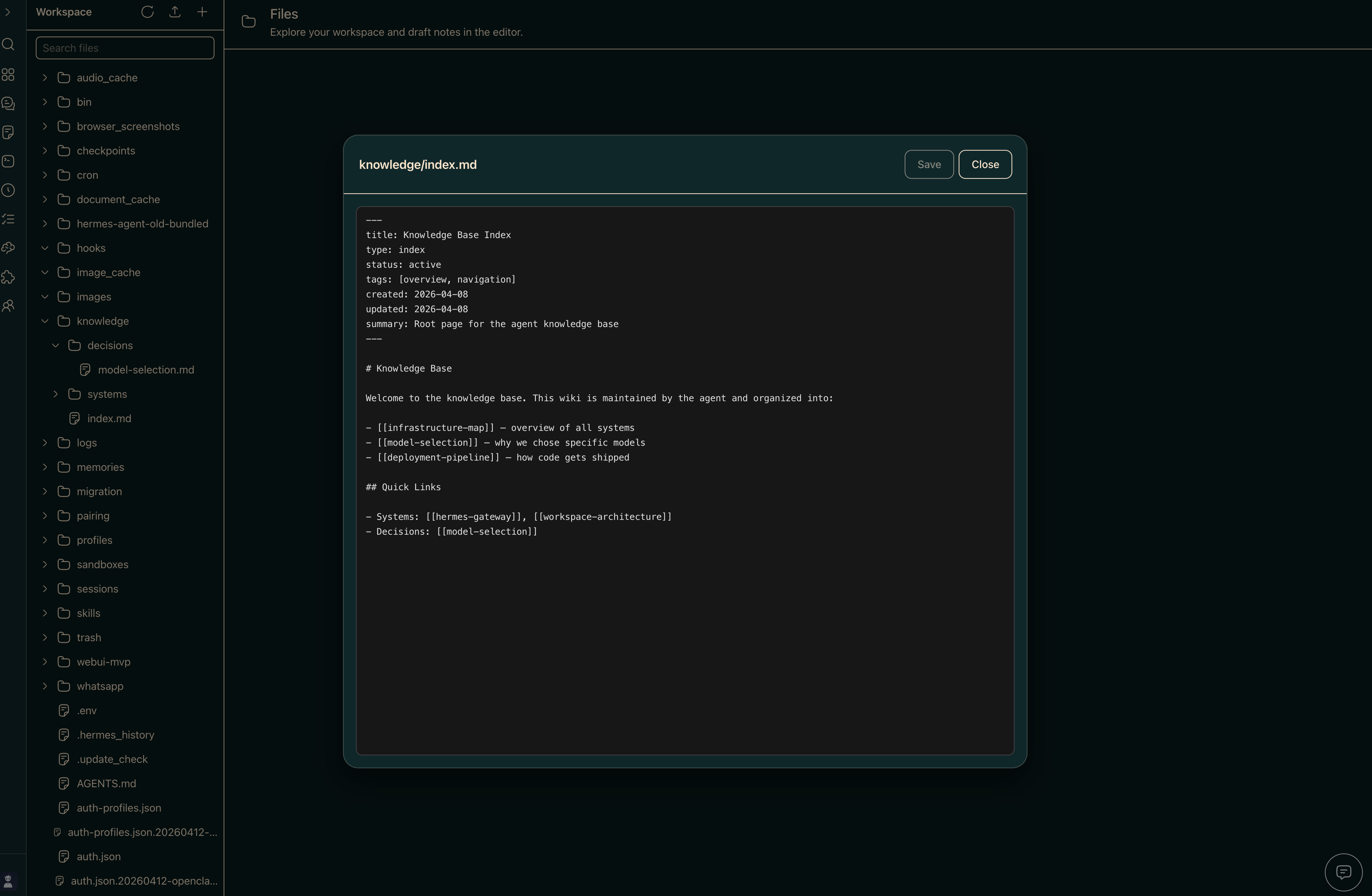
The Wiki tab shows a filterable list of all markdown pages in the shared knowledge base. Select a page to read it rendered as HTML. Click “Edit” to switch to the raw markdown editor. You can also create new pages (enter a relative path such as engineering/react-patterns.md) and delete existing ones.
Use the search box at the top of the list to filter pages by title or path.
Map tab
The Map tab renders a D3 force-directed Memory Map of the full mnemosyne knowledge graph, fetched from /api/memory/graph. Nodes represent gist, working, fact, entity, episodic, and wiki entries; edges show ctx (gist→fact), references (wiki→wiki), mentions (memory→entity), about (fact→entity), relates (entity→entity), and summarizes (episodic→memory) links. Entities are the hubs that interconnect memories. The graph is drawn on a canvas (d3-force layout, ~7k nodes / ~13k edges). Hover a node to highlight its neighbors and labels; click to focus it and open a detail panel; drag to pin (double-click to release). The Filters panel provides node-kind toggles, edge-type toggles, a “hide isolated nodes” switch, and a min-connections slider (raise it to reveal only the hubs) — default is everything visible. Use the search box and zoom controls to navigate. Labels are server-truncated (60 chars) — raw memory text is never sent to the client.
Chat tab
The Chat tab gives you a chat that answers questions using your wiki as grounding. When you send a message, the app searches the wiki for the top five matching pages (/api/knowledge/search), trims each page to 4 kB, caps the total context at 32 kB, and streams the response from the gateway.
Cited pages appear under each assistant message so you can click through to the source. If the gateway is offline, the send button shows a clear “Backend offline” error rather than failing silently.
Settings tab
The Settings tab covers three operational concerns for the knowledge base:
- Wiki source — switch between a local filesystem wiki and a GitHub-backed wiki. Settings are read and written through
/api/knowledge/config. - Cache controls — clear cached knowledge entries through
/api/knowledge/sync?action=clear. - Provider config — a notice that per-agent memory providers are managed inside each agent’s Profile wizard (step 6), not here.
Where the data lives
| Store | Path |
|---|---|
| Agent memory files | ~/.hermes/profiles/<agent-id>/SOUL.md, memories/*.md |
| Shared wiki pages | ~/.hermes/MEMORY.md, ~/.hermes/memory/, ~/.hermes/memories/ |
Changes you make in the UI are written directly to these paths. You can also edit the files with any text editor and reload the page to see the updates.
Common issues
“No memory files yet” for an agent — The agent has not written anything yet, or the profile directory does not exist. Use “Add First File” to create the first file manually.
Changes not reflected in chat — Memory files are read at the start of each turn. If an agent is mid-conversation, your changes will take effect on the next message, not retroactively.
Wiki page shows a blank preview — The file exists but is empty. Click “Edit” to add content.