Files
Files
Browse, preview, edit, and manage files in the directory your Hermes agent has access to.
What you see
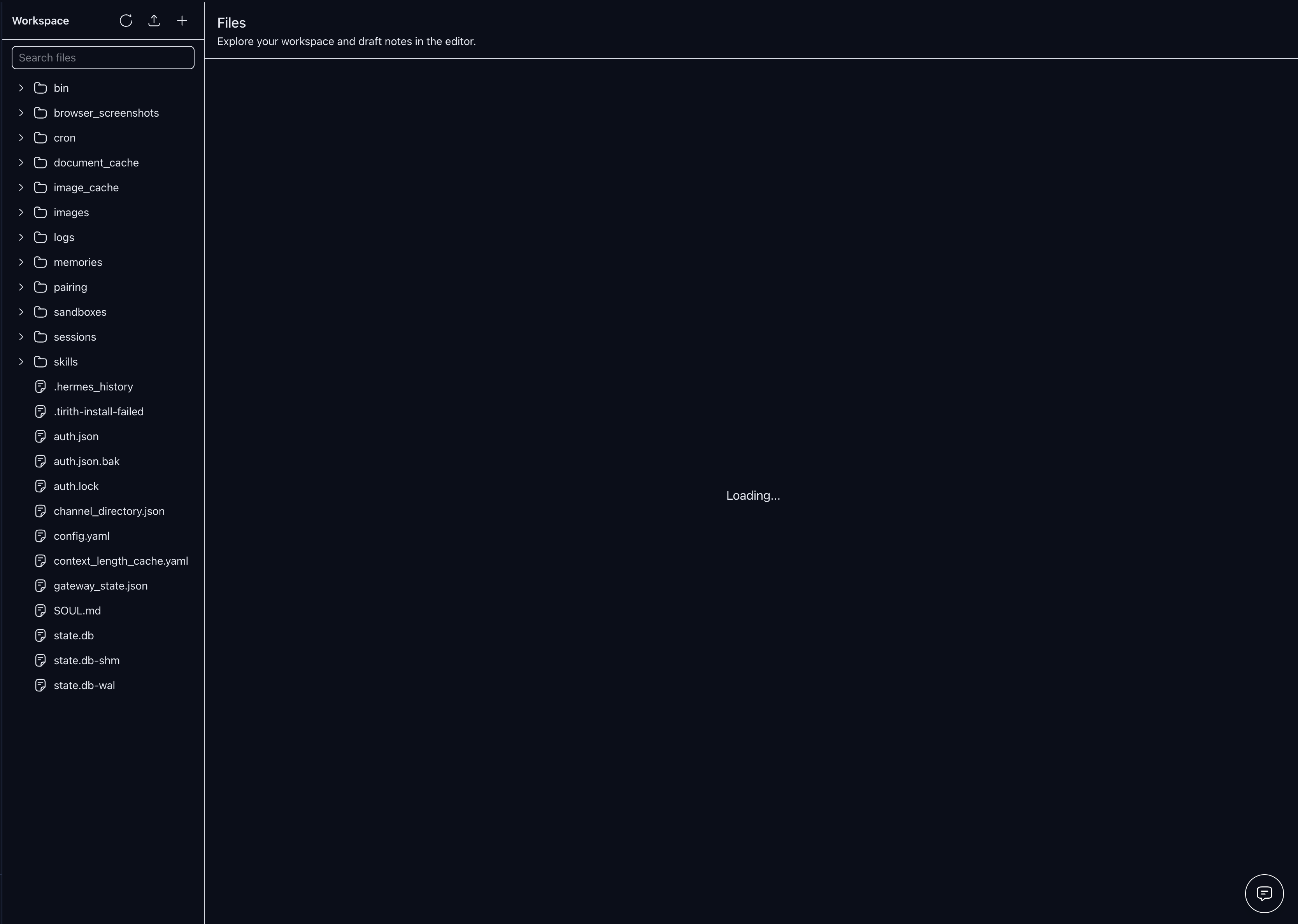
The page has a two-column layout. The left side holds a collapsible Files tree sidebar. The right side shows a FilePanel preview area. At the top of the sidebar is a search input labelled “Search workspace…”, plus action buttons to upload, create a new folder, and refresh the tree. A breadcrumb above the tree body shows the currently selected path.
Major regions
Files tree (left)
The tree lists all files and folders under the Hermes workspace root. Standard build artifact directories (node_modules, .git, dist, __pycache__, .venv) are hidden automatically. Each row shows a file-type icon, the entry name, and its size in bytes. A delete button appears on hover.
Right-click a file or folder for common manager actions: Open, Copy path, Rename, Move to…, and Delete. Files also offer Download. Folders offer New file, New folder, and Upload here. Copied paths use the stable workspace-relative form workspace/path/to/file.
The tree footer shows a count of files and folders. When you type in the search box the tree filters live to matching names and auto-expands matched subtrees.
FilePanel (right)
When you select a file, the panel loads its content via /api/files. Three tabs switch between views:
- preview — default. Markdown files render as formatted HTML with an auto-generated heading outline in the right margin. Images display inline. HTML files render in a sandboxed
<iframe>. Code and config files show syntax-highlighted source with line numbers. - raw — a plain textarea for editing editable text files.
- metadata — a table showing path, file kind, size, modified timestamp, and editability.
The panel header shows a breadcrumb, file kind label, and action buttons: copy path, toggle edit (pencil), open in new tab (arrow), download (arrow-down), delete, and save.
When you save an edited file, the workspace re-fetches the on-disk version to detect concurrent changes. If the file changed since you opened it, a Review changes diff dialog opens showing a split before/after view with line counts for additions and removals. Click Save anyway to overwrite or Cancel to discard.
Common workflows
- To preview a file: click it in the tree. The preview tab opens automatically.
- To edit a file: select it, click the pencil icon or the raw tab, make changes, then click the save button. A diff dialog appears if the file changed on disk.
- To upload files: click the upload button (⤴) in the tree header or the upload link in the panel tab bar. A native file picker opens; multi-select is supported.
- To rename a file or folder: right-click it and choose Rename, then enter the new name.
- To move a file or folder: right-click it, choose Move to…, and enter the workspace-relative destination path including its name.
- To copy a path for use in chat or a command: right-click it and choose Copy path. The copied value starts with
workspace/. - To create content in a folder: right-click the folder and choose New file, New folder, or Upload here. The tree-header + button creates a root-level folder.
- To download a file: click the download button in the panel header, or right-click in the tree and choose Download.
Where data comes from
All file operations go through the workspace API at /api/files. The server reads from and writes to the directory set by the HERMES_WORKSPACE_DIR environment variable. The tree is fetched once on load and refreshed after any mutating action. There is no continuous polling; click the refresh button (↺) to pick up external changes.
Common issues
- Tree shows “Could not load files — request timed out” —
HERMES_WORKSPACE_DIRis not set or points to an inaccessible path. Check your.envfile and restart the dev server. - “File changed on disk since you opened it” — another process wrote the file while you were editing. The diff dialog will show both versions; use Save anyway if you want to overwrite, or reload the page to discard your edits.
- Upload fails — the file picker closed without selecting a file, or the server rejected it. The Files sidebar shows the response error; confirm the workspace is writable and retry.