Chat
Chat
Chat is where you talk to your AI through Hermes Switch UI. It is the main page you will use day-to-day.
What you see
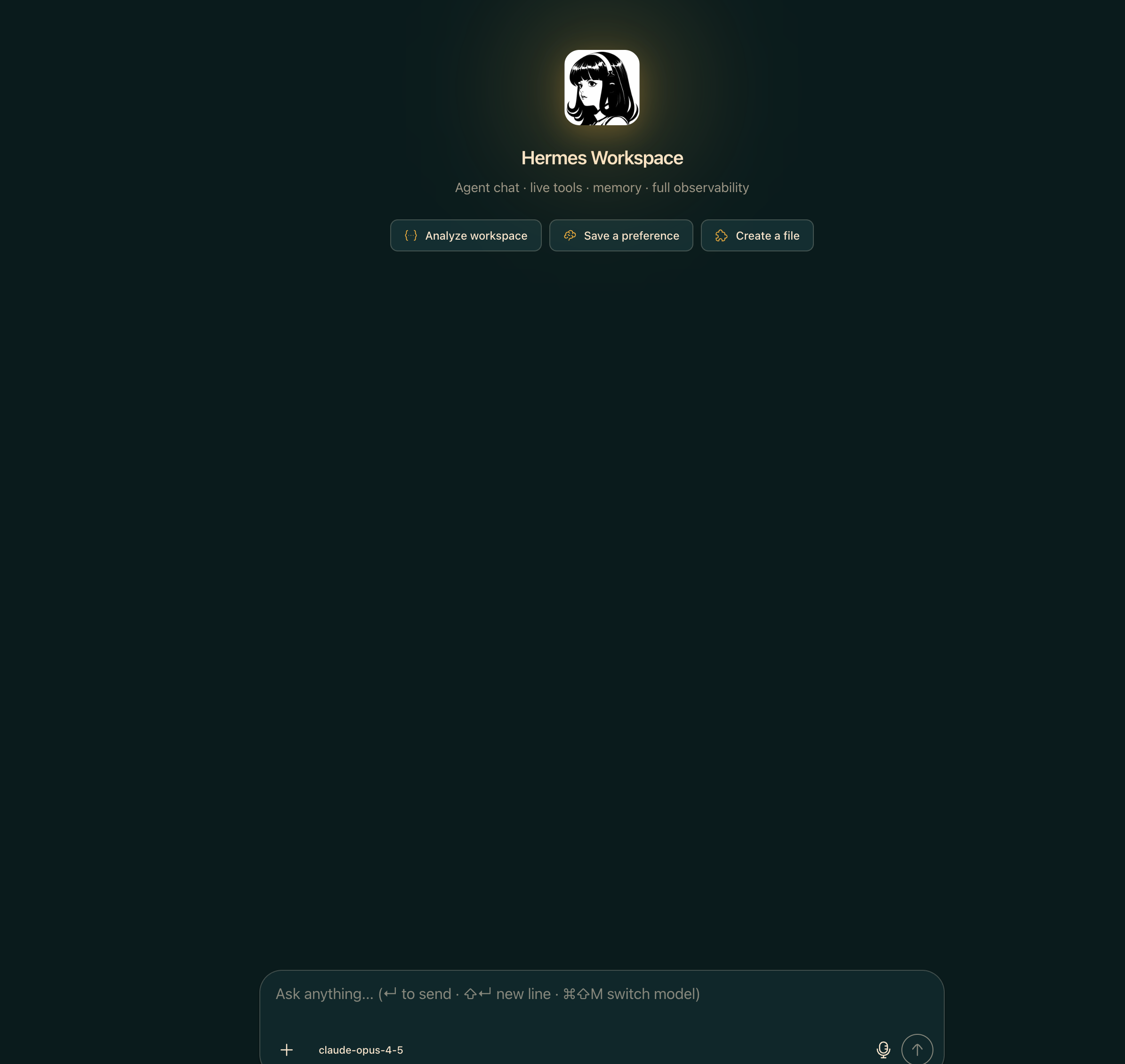
The Chat page uses a three-column layout. On the left is the session sidebar, which lists your conversation history. In the center is the message thread, where the conversation unfolds. At the bottom of the center column sits the composer, where you type your messages. A meta bar runs across the top of the center column and shows the active model and context usage.
Major regions
Session sidebar
The session sidebar lists all your past and current conversations. Sessions are grouped by recency (today, yesterday, older). A search bar at the top of the sidebar (sidebar-search-v2.tsx) lets you filter sessions by keyword. A “New Session” button in the sidebar header (sidebar-header-v2.tsx) starts a fresh conversation. On mobile, the session list surfaces as a slide-over panel (MobileSessionsPanel).
For full details on managing sessions, see Sessions and history.
Message thread
The message thread (ChatMessageList) renders the full conversation for the active session. User and assistant messages appear in distinct bubbles. While the AI is responding, text streams in progressively — you can read the reply as it arrives. Code blocks are syntax-highlighted. File attachments are shown inline below the message that included them.
Composer
The composer (ChatComposer) is the text input at the bottom of the screen. It supports plain text, slash commands, file attachments, and voice input. A model picker and a thinking-level control sit inside the composer bar. For full details, see The composer.
Meta bar / context indicators
The ChatMetaBarV2 bar at the top of the thread shows two key pieces of information: the name of the model currently handling the session, and a context-usage indicator that fills as the session approaches the model’s context limit. When the session nears capacity a ContextAlertModal warning appears. For details on managing context, see Context window indicator.
Sending your first message
If this is your first time on the Chat page, see Your first chat for a step-by-step walkthrough that covers connecting a provider, starting a session, and sending a message.
What you can do here
- Start a new session — click “New Session” in the sidebar or use the keyboard shortcut.
- Continue an old session — select any session from the sidebar list.
- Attach files to a message — see Attaching files.
- Use slash commands — see Slash commands.
- Switch models mid-conversation — see Switching models.
- Use keyboard shortcuts — see Keyboard shortcuts.
Where session data lives
Session history is saved by the Hermes Agent (src/server/hermes-api.ts proxies to the agent on port 8642) and survives across browser restarts. You do not need to do anything to save a conversation — it is persisted automatically. Reloading the page or reopening the browser returns you to the same session.
Common issues
- Messages won’t send — this is usually a problem with the agent or provider connection. See Agent won’t connect and Models not appearing.
- Session disappeared — see Sessions stuck or missing.