Jobs
Jobs
Manage and monitor scheduled cron jobs run by the Hermes agent.
Feature gate: The Jobs page requires the Hermes Agent extended API. If your gateway build does not expose the /api/jobs endpoint, the page shows a Backend Unavailable state instead of the job list. Start the Hermes dashboard on port 9119 (hermes dashboard) to enable it.
What you see
The page heading reads Cron Jobs with a live count of Total, Active, Paused, and Error jobs in the header row. A New Cron button opens the creation wizard. Below the header a filter bar provides a search input, Status pills (All / active / paused / error), Cadence pills (All / hourly / daily / weekly / custom), and a grid/table view toggle. The main area is a paginated canvas showing the filtered job set.
Major regions
Job cards (grid view)
Each CronCard shows the job name, a status pill, the human-readable schedule (e.g. “daily at 03:00”), the raw cron expression, the time of the last run, and the owning skill or agent badge. Four action buttons per card: Run now (play), Pause / Resume, Edit (pencil), and Delete (trash). Clicking the card body opens the detail drawer.
Job table (table view)
The same data in a compact table with columns: Name, Schedule, Status, Last Run, Agent, Actions. Each row is clickable and opens the same detail drawer.
Detail drawer (CronDetailDrawer)
A slide-in drawer with full job metadata: name, prompt, schedule expression, run history, last run timestamp, and status. From the drawer you can edit, trigger, pause/resume, or delete the job.
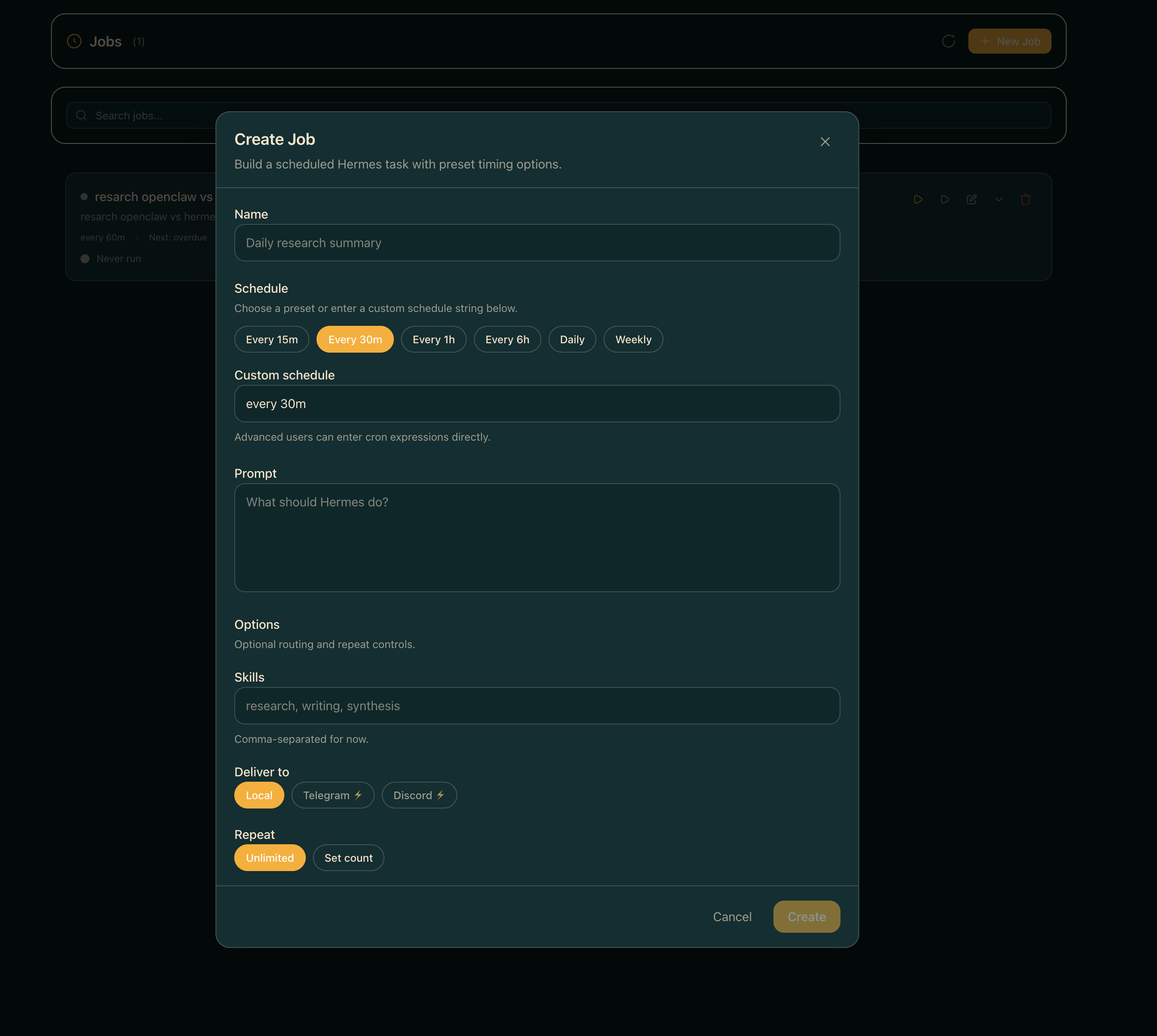
Creation / edit wizard (CronsWizard)
A multi-step form for defining a new cron job or editing an existing one. Fields include name, prompt, cron schedule, and skill assignment.
Common workflows
- To create a cron job: click New Cron, fill in the wizard, and submit.
- To run a job immediately: click the play button on a card or table row.
- To pause a running job: click the pause button; click again (now a play icon) to resume.
- To edit a job: click the pencil button on a card or the Edit action in the drawer.
- To filter by schedule cadence: click a Cadence pill (hourly, daily, weekly, custom).
Where data comes from
Job data is fetched via fetchJobs() which calls /api/claude-jobs (proxied through the workspace to the Hermes dashboard). The list refreshes every 30 seconds automatically. Mutations (pause, resume, trigger, delete) call the corresponding API endpoints and invalidate the cache on success with a toast confirmation.
Common issues
- “Backend Unavailable” on page load — the Hermes dashboard is not running or does not expose the jobs API. Run
hermes dashboardon port 9119 and ensure the gateway probe detects thejobscapability. - Jobs list is empty after creating one — the 30-second polling interval may not have fired yet. Use the browser’s network tab to confirm the POST succeeded, then wait for the next refetch or reload the page.
- Status shows “error” but the job runs — a prior failed run sets
last_run_success = false, which persists until a successful run clears it.