Tasks
Tasks
A Kanban board for discrete tasks tracked by the Hermes agent — drag cards between columns to update status.
Feature gate: The Tasks page requires the Hermes Agent Dashboard Kanban plugin. If the plugin is absent, the page shows a Backend Unavailable state. Start the Hermes dashboard on port 9119 with the Kanban plugin enabled to activate it. While the gateway is probing, a loading skeleton is shown instead of an error.
What you see
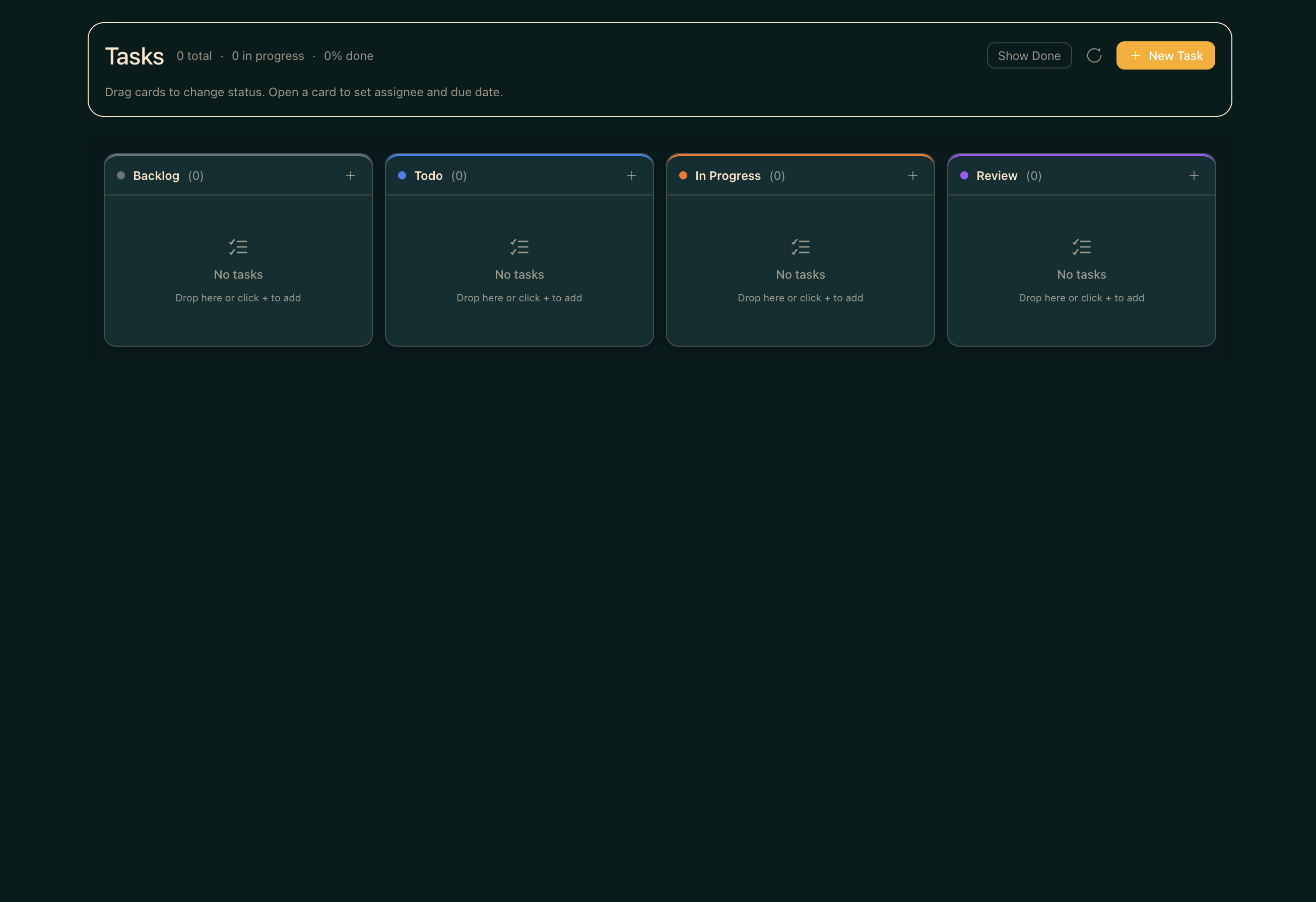
The page renders a full-width Kanban board with columns for each task status. A top bar holds view-toggle buttons for Board, Swim, and Timeline layouts, plus a New Task button (+ icon), a filter/sort controls button (settings icon), and an alert badge for tasks needing attention. A URL search parameter (?assignee=) lets you deep-link to a filtered view.
Major regions
Board view (default)
Uses @dnd-kit for drag-and-drop. Each column is a DroppableColumn component labelled with the Kanban status name (Triage, Todo, Ready, Running, Blocked, Done) and a count badge. Cards inside each column are DraggableCard wrappers around TaskCard. Dragging a card to another column calls moveTask() and updates the board optimistically. The active drag card renders as a semi-transparent overlay.
Swim view
SwimView groups tasks by assignee in horizontal swim lanes. Each row shows the assignee avatar, a label (e.g. “Domain Specialist”), and a sub-grid of columns. Tasks in the Triage column appear with a muted style. Unassigned tasks appear in an “Awaiting Pickup” lane.
Timeline view
TimelineView renders tasks on a time axis. (Soft claim: timeline logic was present in code at time of writing; visual details not fully verified from code alone.)
Task card
Each TaskCard shows the task title, priority colour strip, status, assignee badge, and due date if set. Clicking a card opens the TaskDetailDrawer.
Task detail drawer
A slide-in panel with two modes. In detail mode it shows tabs: Overview (description, status, assignee, due date, priority), Activity, and other metadata. In list mode it shows a list of tasks then drills to the selected one. From the drawer you can archive (soft-delete via deleteTask) or hard-delete (hardDeleteTask) a task, and edit its fields.
Task dialog
TaskDialog is a modal form for creating a new task or editing an existing one. Fields include title, description, status, assignee, priority, and due date.
Common workflows
- To create a task: click the + button in the top bar, fill in the
TaskDialog, and submit. - To change a task’s status: drag its card to the target column on the board view.
- To assign a task: open the card drawer, switch to the Overview tab, and pick an assignee from the dropdown.
- To filter by assignee: append
?assignee=<id>to the URL, or use the filter controls in the top bar. - To archive a task: open the drawer and click Archive. The task is soft-deleted and removed from the board.
Where data comes from
Tasks are fetched from the Hermes dashboard Kanban plugin via /api/hermes-kanban/* proxy routes. The page subscribes to real-time updates through useKanbanEvents, which connects to a server-sent events stream so the board refreshes when the agent creates or updates tasks without a manual reload. Assignee lists are fetched separately via fetchAssignees() and merged with local workspace profiles using unionAssigneesWithProfiles.
Common issues
- “Backend Unavailable” on load — the Hermes dashboard Kanban plugin is not running. Start
hermes dashboardon port 9119 with the Kanban plugin enabled. - Board shows a loading skeleton indefinitely — the gateway probe has not completed yet. Wait a few seconds; if it persists, check that the dashboard is reachable on port 9119.
- Drag-and-drop has no effect — the
moveTaskcall may have failed silently. Open the browser console and look for a network error on/api/hermes-kanban/. A stale ISO timestamp in the database can cause 503 errors on the entire board (see the Kanban DB timestamp issue in project memory).