Terminal
Terminal
Open a real PTY shell session inside the browser without leaving the workspace.
What you see
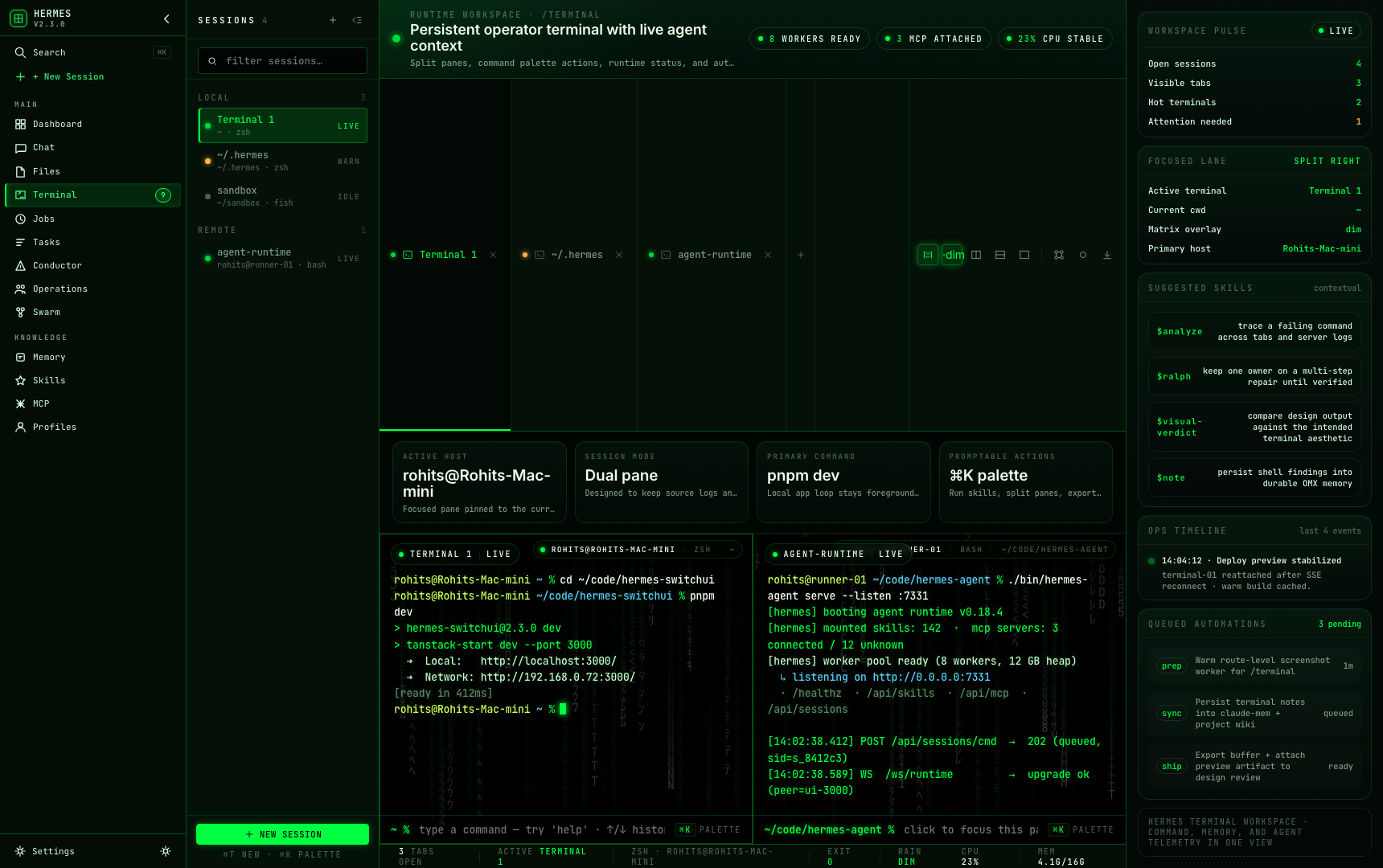
The terminal is rendered by the TerminalWorkspace component using xterm.js (loaded lazily on the client; never server-side). It can run as a floating panel from the workspace shell or full-screen at the /terminal route. A tab bar at the top lets you manage multiple sessions. A Matrix rain canvas animates in the background.
Major regions
Tab bar
Each open session appears as a tab. Click a tab to switch to it. Right-click a tab for a context menu with Rename and Close actions. A + button opens a new session. A toggle button switches between the panel and full-screen layout.
Terminal pane
The xterm.js surface takes up the remainder of the screen. It uses the FitAddon to resize automatically with the browser window and the WebLinksAddon to make URLs clickable. You can split the pane horizontally or vertically — a SplitMode control provides single, horizontal, and vertical options.
Debug panel
A collapsible Debug panel below the terminal shows a structured analysis of the last command output, including a summary, root cause, and suggested follow-up commands. This is populated when the terminal output triggers an analysis pass.
Common workflows
- To open a new terminal session: click the + tab button. Each session starts in
~/.hermesby default (override withHERMES_TERMINAL_CWD). - To split the view: use the split-mode toggle in the tab bar header to switch between single, horizontal, and vertical panes.
- To rename a tab: right-click the tab and choose Rename.
- To close a session: right-click the tab and choose Close, or click the × on the tab.
- To copy terminal output: select text with the mouse; the xterm.js selection is automatically copied.
Where data comes from
Each terminal session is a real PTY process on the server managed by src/server/terminal-sessions.ts. The workspace spawns a Python PTY helper (pty-helper.py) which bridges the shell without requiring the node-pty native addon. Input and resize events stream over server-sent events via /api/terminal-input, /api/terminal-resize, and /api/terminal-stream. Sessions survive transient browser disconnects: when all SSE listeners detach, a reap timer starts (default: long enough to absorb network blips and tab suspension). A new listener reattaches to the live PTY within the TTL window. Override the TTL with HERMES_TERMINAL_DETACH_TTL_MS.
Common issues
- Blank terminal on load — xterm.js loads asynchronously. If the pane stays blank for more than a few seconds, reload the page. Check the browser console for import errors.
- Terminal does not resize — the
FitAddonfires on window resize events. If columns and rows look wrong, toggle the browser window size or open a new tab. - Session disconnects repeatedly — if the Hermes agent process restarts, PTY sessions are lost. The reconnect banner at the top of the page indicates gateway connectivity; wait for the banner to clear before running commands.